![Quartet logo (light)-1.png]](https://knowledgebase.ensembleip.com/hs-fs/hubfs/Quartet%20logo%20(light)-1.png?height=33&name=Quartet%20logo%20(light)-1.png)
Each individual alert is connected to a Search Project, please refer to this article for more information on these.
Alerts can be set up to run weekly, biweekly, monthly and quarterly.
The alert cycle starts on the day and time the alert has been created.
The first set of results will be available after the first cycle matching the interval setup on the alert.
E.g. if an alert has been created on Tuesday and set up to run weekly, the first set of results will be available the following Tuesday
Setting up an alert
There are three ways to create an alert.
Method 1:
From the Home page, click on the “New alert” from the options along the top of the page:
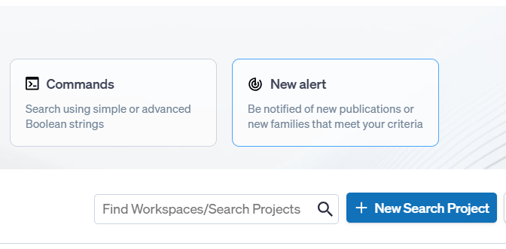 A dropdown will be presented with the latest 3 Search Projects worked on and the ability to create a new project. Select according to where you’d like the alert to be created.
On the next page, click the “+ New Alert” button in the top left-hand corner.
Method 2:
From within a Search Project click on the Alerts tab along the top of the page:
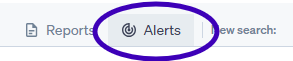 Then click the “+ New Alert” button in the top left hand corner.
Method 3:
From the Timeline within a Search project, click on the three dots to the right of the relevant search query, then select New Alert:
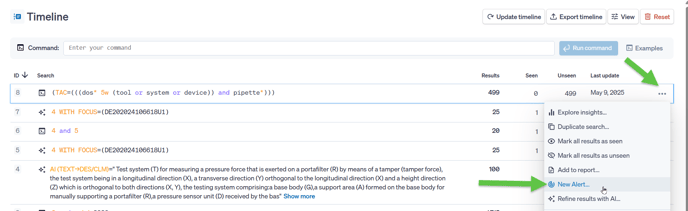
Once the New alert screen has been accessed, follow these steps:
- Enter a name for the alert
- Copy and paste the search query or write it within the Search query box - please not that if method 3 above is used, the search query will automatically populate
Please refer to the Search Operators and Fields Cheat Sheet for information on search language.
Alerts are saved on a project basis, which means that within the query it is possible to refer to Timeline query numbers. If a Timeline query number is referred to, the alert will automatically convert this to the search string, this means that if the Timeline is reset at a later stage, the alert will not be affected.
- Select the alert frequency from the available option:
Weekly
Biweekly
Monthly
Quarterly - Then select what the alert should monitor:
New publications – will notify of new publications matching the query, that has been added to Quartet since the last alert update
New and modified families – will notify of brand new families and families with new publications matching the query, that has been added to Quartet since the last alert update
Please note that when monitoring for new publications, Quartet will identity a hit only when all search criteria are matched in the same publication. When monitoring for new and modified families, Quartet will do a family-based search as usual.
- Select if an export of the alert results should be delivered as an email
Please note that alert results will always be available on the Alert updates section within the Alerts page for the relevant Search Project.
If the alert results are sent as an email:
Select the export template from the dropdown list. A selection of system defaults are available along with custom templates, if these have been created.
If applicable, enter additional e-mail recipient(s). If including multiple recipients, please separate the e-mails by a semi-colon (;)
The owner of the alert will automatically be included in the e-mail send
The alert email will include different options, depending on the recipient:
- The owner of the alert will have both the option to view the results within Quartet and the ability to download the export of the results
- Any recipient that is not the owner will have the option to download the export of the results
Remember to click the “Create Alert” button to finish the setup.
Modifying an alert
To modify an alert, navigate to the Alerts button within the relevant Search Project.
All the available alerts are displayed within the Alerts column on the left hand side of the page.
Click on the … next to the relevant alert and select “Edit Alert”
Make the relevant edits and click the “Save changes” button. Any edits will be reflected in following alert runs.
Deleting an alert
To delete an alert, navigate to the Alerts button within the relevant Search Project.
All the available alerts are displayed within the Alerts column on the left hand side of the page.
Click on the … next to the relevant alert and select “Delete Alert”
A notification pop up will appear, where it is possible to confirm deletion of the alert.
Please note that deleting an alert will remove all previous alert results and the links within the alert emails will no longer work.