![Quartet logo (light)-1.png]](https://knowledgebase.ensembleip.com/hs-fs/hubfs/Quartet%20logo%20(light)-1.png?height=33&name=Quartet%20logo%20(light)-1.png)
Results View
In Results view, figures are shown by default in the “Extended list” view. The user can also go to a custom view and show Figures with any other subset of fields available to them. This gives the user the potential to quickly scroll though thumbnails of figures for an entire set of results from a given query. Results view shows the first 5 thumbnails followed by an option to click through to view all figures.
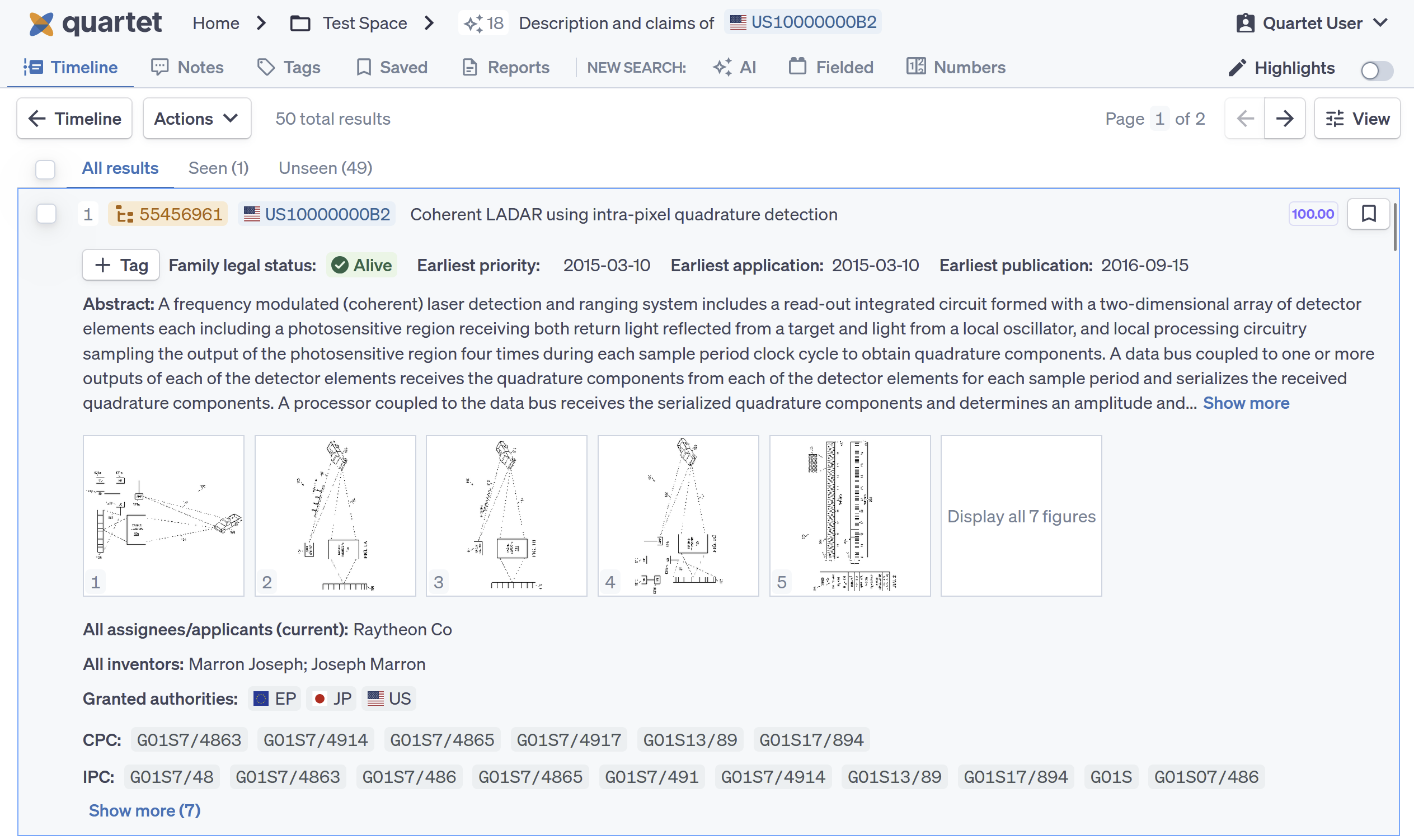
Detail View
Clicking on “Display all # figures” in Results view takes the user to Detail view with the “Figures” tab displayed. Detail view provides the users with multiple additional ways to review Figures.
The center pane shows thumbnails of all figures instead of just the first 5 from Results view. The thumbnails are resizable with a slider.
The thumbnails can also be resized using the minus (-) and plus (+) hotkeys. Note that the system will accept equals (=) as an equivalent hotkey for plus (+) to remove the need to hit shift and equals (=).
Clicking on the thumbnails will bring that figure up in the right side pane.
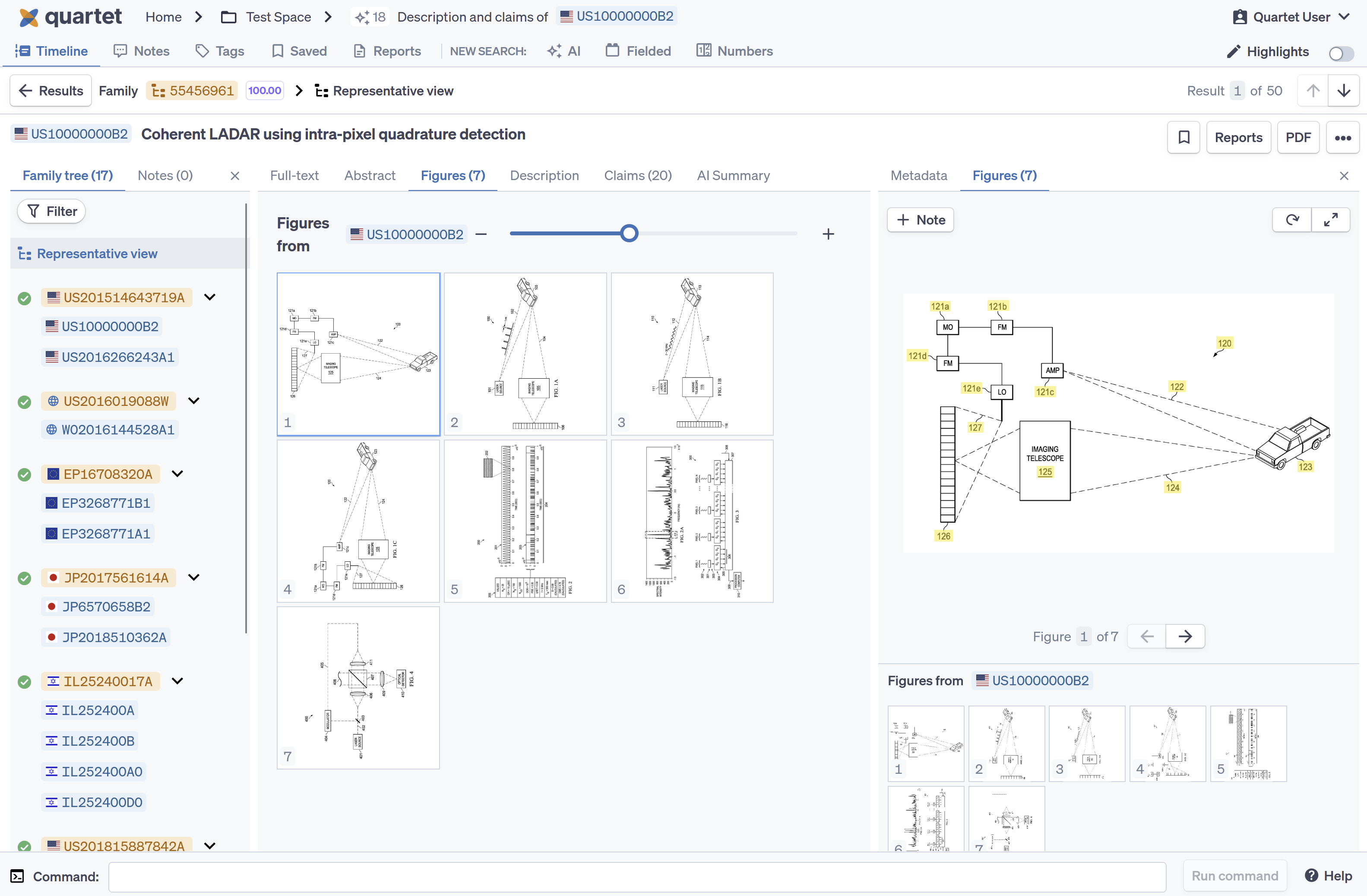
The right pane has a “Metadata” and a “Figures” tab as previously mentioned. The “Figures” tab allows a user to view figures while concurrently referencing full text of the document in the left pane. The right pane “Figures” tab has a thumbnail strip at the bottom of the panel that allows a user to navigate to specific figures by clicking on the corresponding thumbnail. The user can also navigate figures sequentially using left and right arrows as hotkeys. Note that the thumbnails are numbered as a convenience and may not match the actual figure numbers in the document.
The thumbnail strip in the right pane can be dragged and resized to show more or fewer rows of thumbnails. The main large figure in the right pane fills the vertical space above the thumbnail strip and automatically resizes based on the vertical height of the thumbnail strip.
The right pane has a “Rotation”  button for rotating figures. The user can also press “R” as a hotkey to rotate the figure. The figure rotates clockwise by 90 degrees each rotation. Rotations for figures persist when moving from figure to figure within the same document, but are reset once the user moves on to a different document.
In some figures, certain element numbers are highlighted in yellow. The corresponding element name from the text of the publication will be shown upon hovering over the highlighted element numbers.
Figure Popup
Next to the “Rotation” button is an “Expand”  button that brings up a “Figure Popup” box. The Figure Popup box can also be accessed by double clicking a thumbnail in either pane or hitting the space bar hotkey. Note that the space bar hotkey only works when at least one of the Figures tabs in either pane is selected.
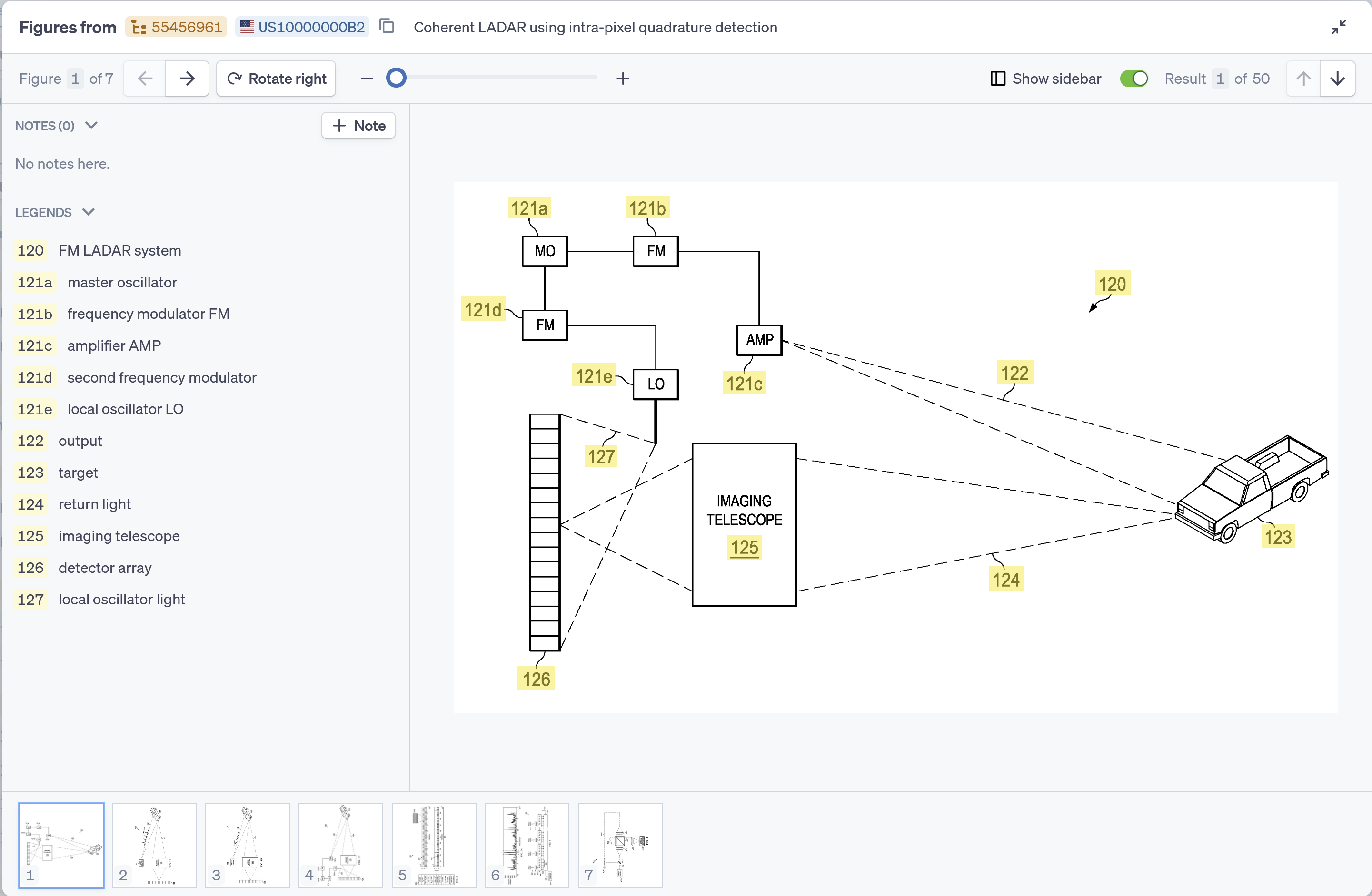
The “Figure Popup” gives the user an even larger view of the figures and allows the user to zoom into the figures to view specific details in figures if necessary. The “Figure Popup” includes the same navigation features as the right pane. In the “Figure Popup”, the user can scroll through documents of a result set with up and down arrows in the upper right corner or up and down hotkeys similar to how one would navigate through results in Representative view.
Similar to the right pane in “Results” view, the “Figure Popup” highlights element numbers in the figures which when hovered over shows the associated element name from the publication text. In addition to hovering over the element numbers, the user has the option to toggle legends off or on. When toggled on, the legends will show a list of element numbers and the associated element names. The user can hover over an element in the legends and the element in the figure will then highlight in blue to show where this element exists in the figure.