![Quartet logo (light)-1.png]](https://knowledgebase.ensembleip.com/hs-fs/hubfs/Quartet%20logo%20(light)-1.png?height=33&name=Quartet%20logo%20(light)-1.png)
Quartet takes a project-based approach to organization within the system. When a user begins searching, they must:
- create a new project, or
- select an existing project
The Sandbox is an always-available default project and acts as a quick search environment where a user can quickly run some strings without having to create a separate project. The Sandbox is pinned to both the projects list and the drop down menu from the quick access search interface buttons at the top of the Home page.
As the user works on a search project, the system will automatically save the user’s input and work, such as:
- Timeline (also called search history)
- Saved references/families
- Highlights, and
- List of seen and unseen results specific to the active project.
This project-based organization allows a user to freely swap between projects, pick up and continue with previous projects, and begin new projects knowing that all previous work is automatically saved to each respective project without affecting one another.
Home Page
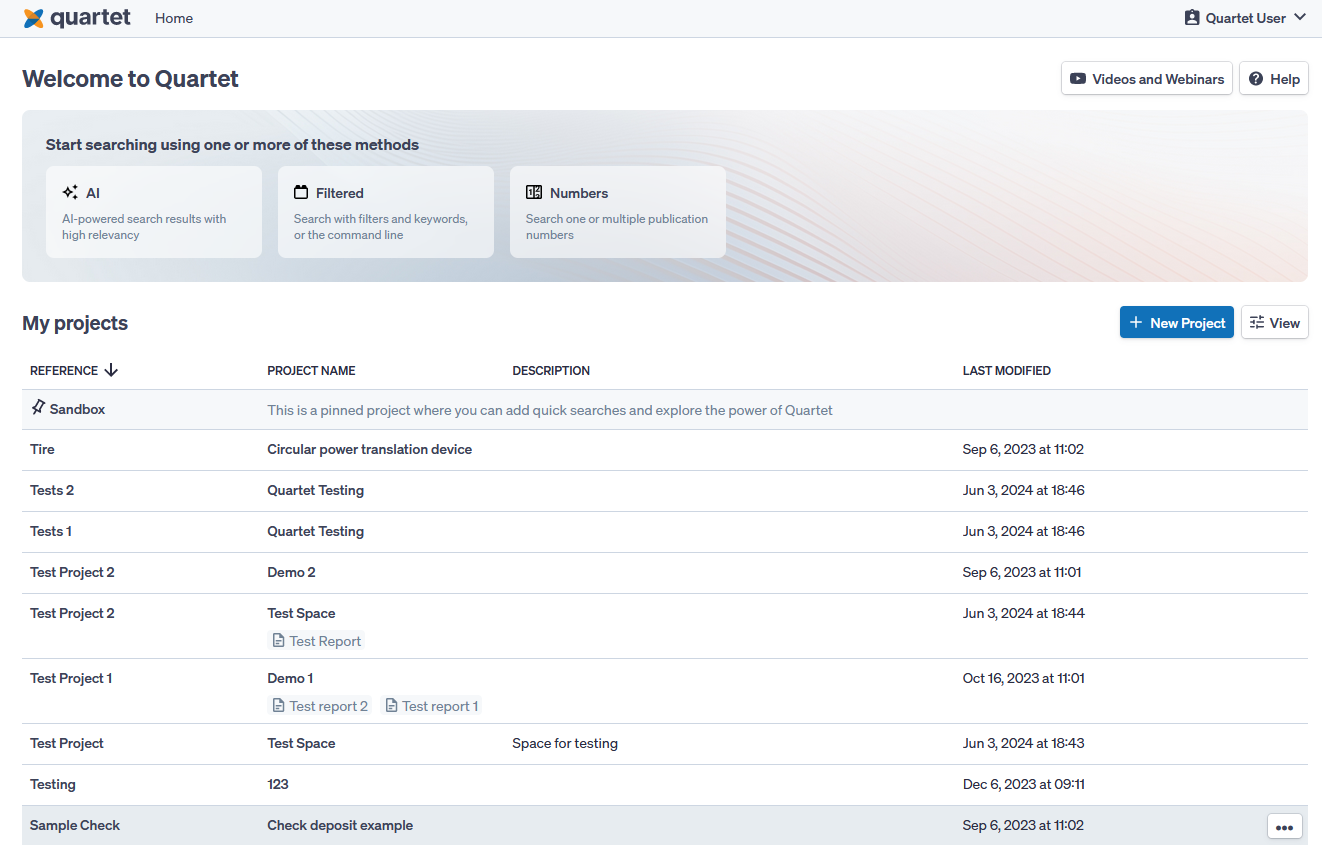
The “Home” page is where the user can switch between and create new projects.
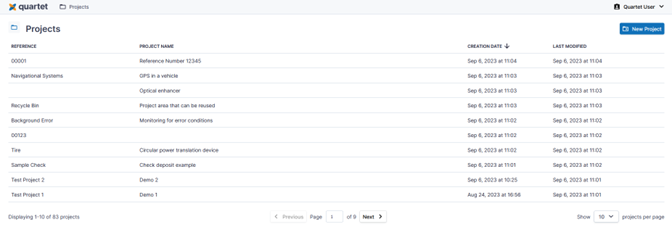
First time users will have a pre-loaded example project in their “Home” page. This pre-loaded project provides examples of the common elements that are saved to a search project, such as a queries, highlights, and references.
To create a new project, click the "New Project" button near the upper right. The user is given three organizational fields: “Reference,” “Project name,” and “Project description.” The user must enter text into at least one of the “Reference” or the “Project name” fields, but text entry into the “Project description” field is optional.
Navigating Projects
Under the search methods buttons, the user can view a list of all projects associated with the account.
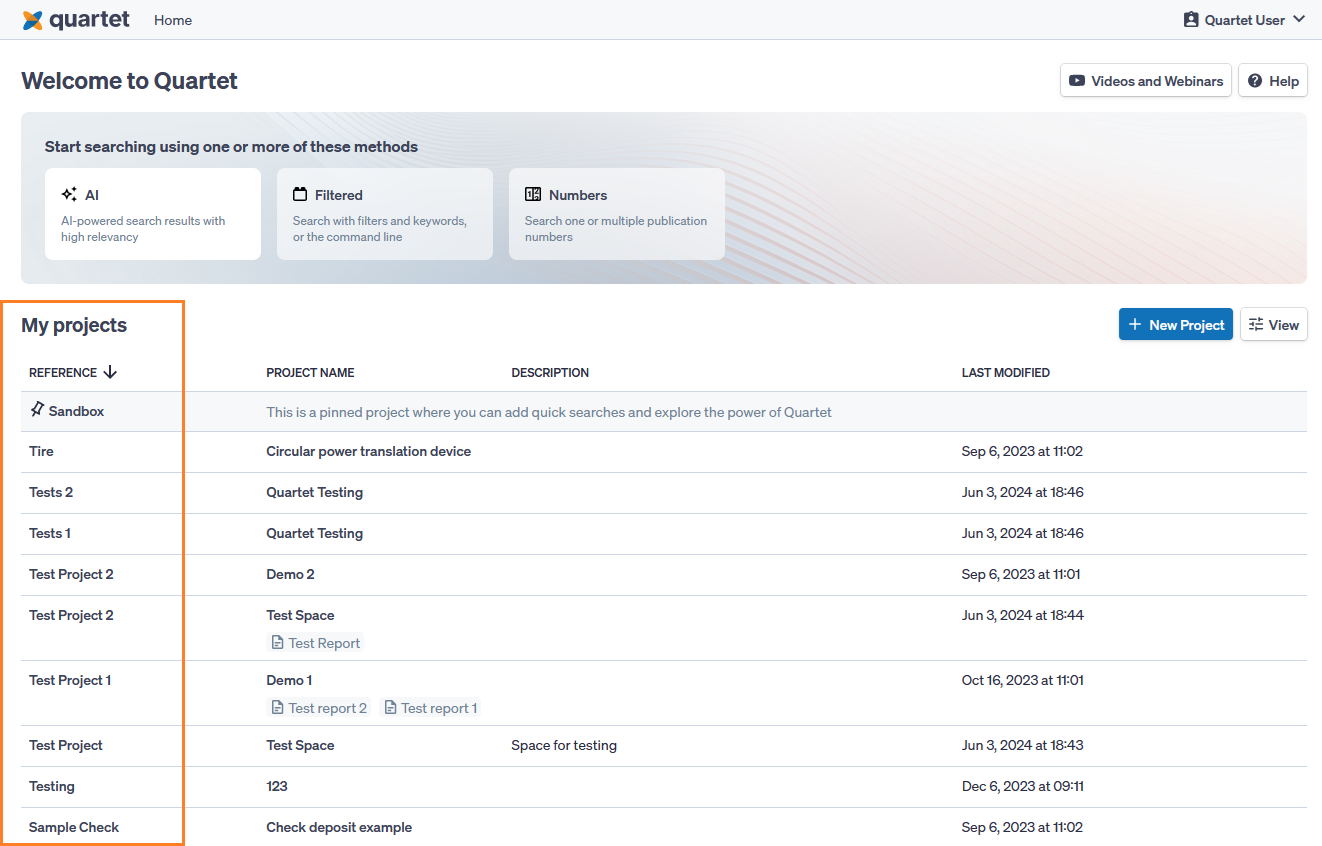
The user may change the number of projects displayed per page via a drop-down menu at the bottom of the “Home” page. The drop-down menu gives options of viewing 10, 25, 50, or 100 projects per page. If there are multiple pages of projects, the user may cycle through the pages by clicking the “Previous” and “Next” buttons, or by entering the desired page number in the box between the “Previous” and “Next.” Page selection options are not shown if there are 10 or fewer projects saved to a user profile.

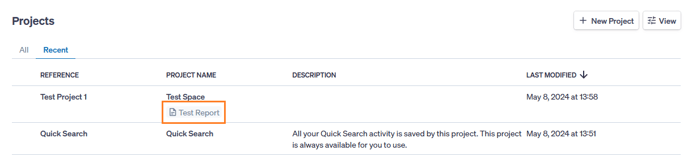
If a project has any associated Reports, these reports will be shown under the title in the “Project Name” column. The reports can be quickly accessed by clicking on the report name without having to first open the project.
The user is automatically taken to the Timeline tab of the project upon project creation project after creation. The user can always go back to the “Home” page to navigate to different projects. To open an existing project, select the project by clicking anywhere on the row corresponding to the desired project.