-1.png?height=120&name=Quartet%20logo%20(light)-1.png)
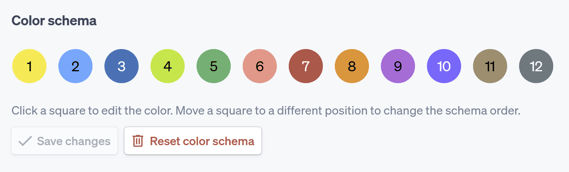
The “Color schema” allows the user to rearrange the order of and customize the default highlight colors.
To find the "Color schema," click on the Username > select Customization > select Highlights.
The “Color schema” allows the user to rearrange the order of and customize the default highlight colors. The order and colors in the “Color schema” is how colors will be presented in the “Highlights” box.
“My highlights” is the library of saved highlight text strings that can be quickly loaded into the “Highlights” window. The name and the string itself can be edited and saved here.
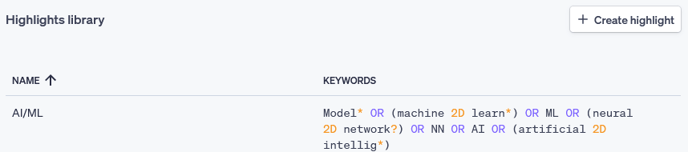
The library of highlights is powerful, as it allows the user to create repositories which can be easily accessed within any project. If a user knows they will be working within a technology field multiple times they can continue to use their highlights without worrying about forgetting keywords or terms from project to project, while also expanding their saved knowledge with every project.