-1.png?height=120&name=Quartet%20logo%20(light)-1.png)
Detail view provides an in-depth look of a publication and its patent family. This view shows full family information such as full text, figures, and metadata for all family members.
Detail view has three main sections:
- Left pane to the left as a collapsible sidebar. The left pane shows Family Tree and Notes.
- Center pane that displays the document and has tabs for each of Full-text, Abstract, Figures, Description, Claims, and AI Summary.
- Right pane that displays Metadata or Figures of the representative document.
Left pane
The left pane displays all family members of a patent family with the members sorted by domestic family. In the Family Tree, numbers highlighted in yellow are the application numbers for the domestic family.
The numbers in the Family Tree will be organized in the same order as the expanded Family Tree in the Full-text tab in the center pane.
Document Matching
Family members which match the search query criteria will be outlined with a border in the Family Tree. In some instances, multiple family members can be shown as a hit, such as when multiple members from the same family were input as a Numbers Search or if a family contains multiple members from a specified jurisdiction.
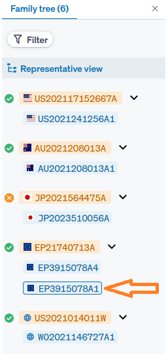
The border feature works when the search criteria is associated with a family’s metadata (entities, country codes, publication numbers, classification codes, and dates), however this feature does not work with keyword text searching.
Country Code Filter
The filter function allows users to pick out family members published in specified jurisdictions. Documents from the specified jurisdictions will be moved to the top of the family tree, and documents from all other jurisdictions will be moved to a collapsed tree.
Clicking on the Filter button will open a box into which the user can enter the desired countries. Both country codes and country names are recognized. A list of country codes can be found in the Patent Coverage page.
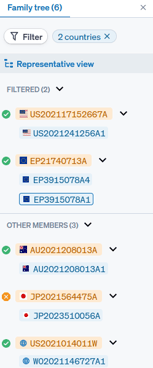
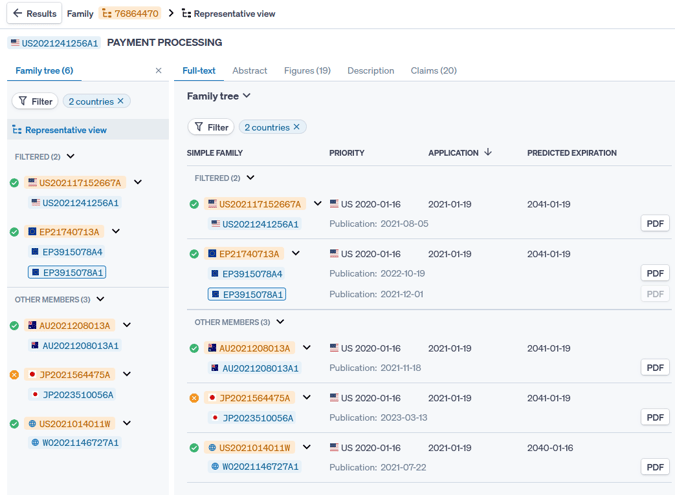
The same country code filter is also available in the center pane family tree of Detail view below the figure thumbnails.
Legal Status
The legal status of each domestic family within the simple family is shown in both the Family tree on the left and the Family tree under the Full-text tab in the Left Pane. See Legal Status (link) for additional information.
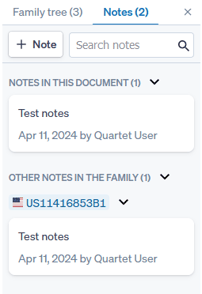
Notes
Any documents having notes will be shown with the notes icon  .
.
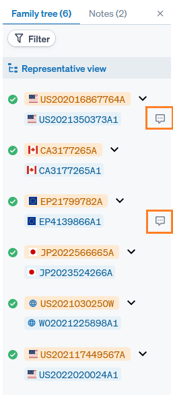
Next to the Family tree tab, there is a Notes tab showing all notes associated with the publications of that family. In the Notes tab of the left Family tree, the user can also add, edit, and delete notes similar to the actions available in the Notes page.
Like in the Notes page, the notes in the Family tree are also searchable with the search box, but also like in the Notes page, Boolean operators do not work in this search box.
When showing a representative family member, all notes in the family will be shown in the family tree. When a specific publication is selected, notes for that publication will be shown first, however notes for other family members will also be shown after.
Center Pane
The center pane shows the text of the document and is used to review the contents of a publication.
The user can select a specific section of the document text to display using the tabs for Full-text, Abstract, Figures, Description, Claims, and AI Summary.
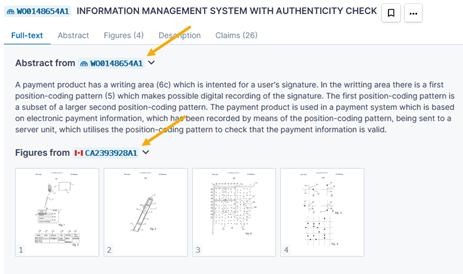
For each tab of the document, the system will display the document number of the family member from which the section is being pulled, as different sections may be pulled from different family members.
In general, selection of the representative member to display is determined by a background set of rules; however, if the system’s first-choice document is missing a field, the missing field will be pulled and displayed from another family member. An example of this can be seen in the family for document WO 01/48654 A1. The WO document does not have figures, so they are pulled in from the CA family member instead.
Full-text
The “Full-text” tab will display all of the text of the document, as well as an expanded Family Tree and a set of thumbnail figures. The expanded Family tree within the “Full-text” tab contains links to access original PDFs of references within the family.
Abstract
The "Abstract" tab displays the abstract of the document, if available.
Figures
The "Figures" tab displays the figures of the document, in available. In the tab heading, the number of available figures is shown in parentheses.
Description
The "Description" tab displays the full description of the document.
Claims
The "Claims" tab displays the claims of the document. In the tab heading, the number of claims in the document is shown in parentheses.
AI Summary
The "AI Summary" tab displays an AI-generated summary of the publication. The AI Summary is not generated by default; the user must prompt the system to generate the summary.
Right Pane
The right pane provides two tab options for the user to see additional information concurrently and side-by-side with the main text of the document. This gives the user the ability to have additional information on hand while reviewing the documents in their entirety. The user can display the metadata or figures of the patent family or specific publications.
Metadata
The “Metadata” tab displays publication, application, and priority dates, inventors, applicants, IPC and CPC classification codes, and if available, the legal status of the patent publication.
The data shown is different depending on whether a representative view of the family or a specific publication within the family has been selected.
If the representative family is selected:
- The Family legal status will be shown, wherein the status will be “Alive” if at least one family member is live, and “Dead” if all family members are expired.
- "Granted authorities" will show all jurisdictions in which a patent has been granted in the family.
- The dates shown will be the earliest instance of each date in the family.
- The entity names and classification codes will be aggregated from all family members.
If a specific publication within the family has been selected:
- A list of application events for the specific publication will be shown, including its legal status (if available).
- The entity names and classification codes will pertain to that specific publication only.
- Priority dates and application numbers for that specific publication will be shown.
Figures
The “Figures” tab shows all figures of the document and includes several features which improve the document reviewing process for the user. These features are described in depth in Images and Figures.