-1.png?height=120&name=Quartet%20logo%20(light)-1.png)
The “Reports” feature allows users to share results of a search externally with users who do not have a Quartet account.
This page will cover the following:
Reports can be shared with a sharable link to external users. When shared, external users can use Quartet’s interface to look through all references saved to that report.
The “Reports” feature works similarly to “Saved” references in that the user selects specific references to save to a list and reports are project specific, meaning a report for Project 1 will not be visible in Project 2.
Unlike the “Saved” feature which is limited to one “Saved” list per project, a user can create as many reports as they wish. Further, “Saved” references are saved as a whole family, while references saved to a report are saved by individual publications.
Creating a report
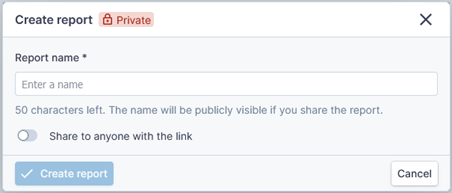
Reports can be created in one of two ways – in the “Reports” tab and in Detail view. In the “Reports” tab, the user selects “Create a report” to bring up the “Create report” pop-up. The “Create report” pop-up will prompt the user to name the report and select whether to make it publicly visible or not.
Reports can also be created in Detail view when adding a publication to a report.
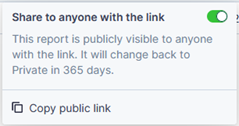
Any publicly available report will revert back to being private after 365 days
Reports page
The page within the “Reports” tab displays a list of all reports associated with the active project. The title, number of documents, shared status, and creation and last modified dates for each project is shown.

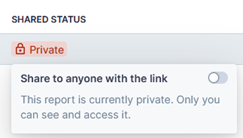
From the list of reports, the user can conveniently copy the public link for any shared reports. The user can further hover over the shared status of each project to toggle the shared status from shared to private and vice versa.
Similar to search queries on the Timeline, hovering over each report will reveal a “Three-dot” button with additional actions allowing the user to edit, export, duplicate, or delete the report.
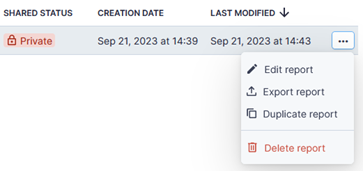
Clicking a report will take the user into a Results view of the references saved to that report. From there the user can review each result in depth much like in regular Results and Representative views.
Saving references to report
To save a reference to a report, the user must be in Detail view. References cannot be saved to reports in Results view. In Detail view, the “Reports” button near the top right brings up the option for the user to manage reports for that particular publication. If no publication has been manually selected, the system will default to the representative publication. Multiple members of one family can be saved to a report.
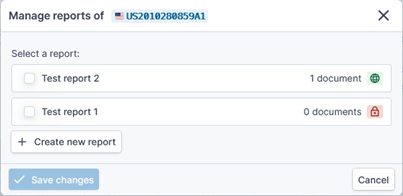
The “Manage reports” pop-up allows the user to select the applicable reports to which the publication is to be saved. The user can also create new reports in this pop-up. Once saved, any publications of a family which have been saved to a report are indicated by an icon in both the Family Tree in the left column and the expanded Family Tree in the Full-text tab
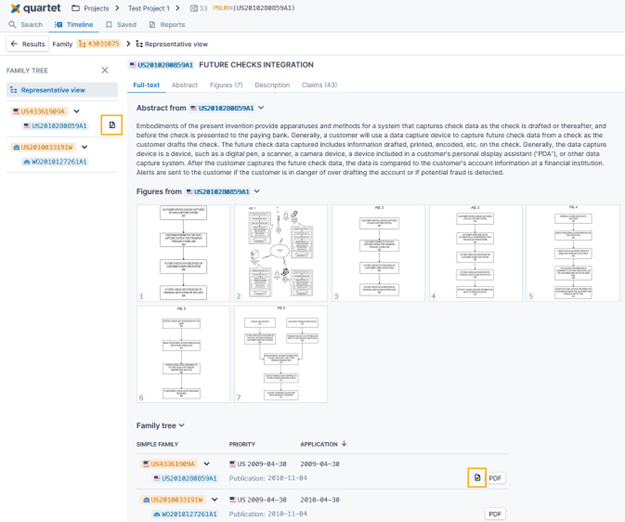
Public view of report
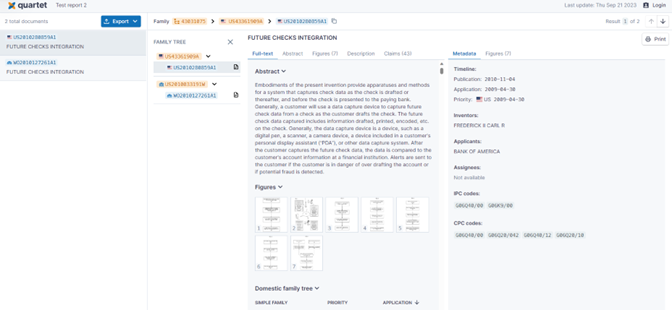
The figure below shows what a user with a public link of the report will see when accessing the report. The user will be presented with a list of all references saved to the report to the left. Note that these are publication based and members belonging to the same family will appear separately. As shown in the figure, the US and WO documents saved to the test report both belong to the same family but have discrete entries in the report.