-1.png?height=120&name=Quartet%20logo%20(light)-1.png)
Tags allow a user to create their own categories and add tag each publication with their own taxonomy of categories.
This page will cover the following:
With tags, the user can create their own taxonomy of categories and append the categories to each publication. The user can define different tags that fit the needs of each project. For example, a user may create tags for labeling publications as 3, 4, or 5 stars in one project, while in another project my create tags for labeling whether a publication has a first or second embodiment.
Tags are specific to each publication. Different publications within a family can be assigned different tags.
Tags in Results view
Each row in Results view has a  button for adding tags to that family. Clicking on the add tag button opens a drop down menu for the user to apply a tag to that publication or to create tags if the desired tag has not been yet made.
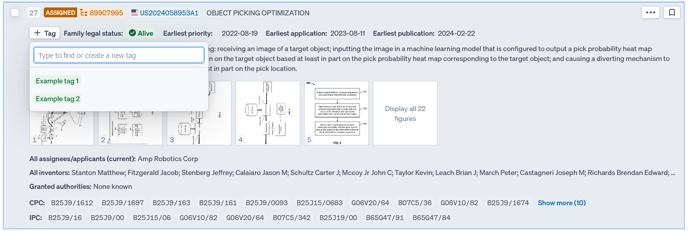
Because tags are associated on a family level, adding tags in Results view adds the tags to the representative family member shown.
To remove a tag, simply click on the "X" next to the tag.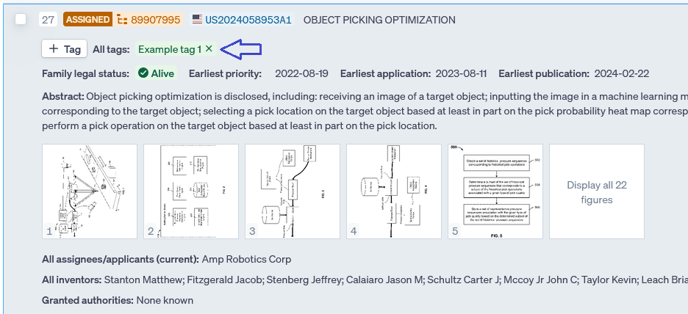
The following are hot keys specific to the tagging process for users who prefer to use keyboard shortcuts instead of mouse clicking.
| T | Add tag |
| Up/down arrow | Cycles through list of available tags |
| Enter | Assigns selected tag |
| Esc | Exits Tag modal |
Detail View
Family tree
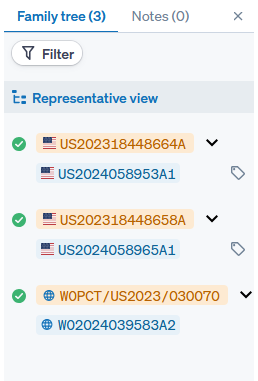
Any publications with tags will have the tag icon  next to its publication number in the family tree. Note that this tells the user that the publication has been tagged but does not say which tag has been used.
Metadata
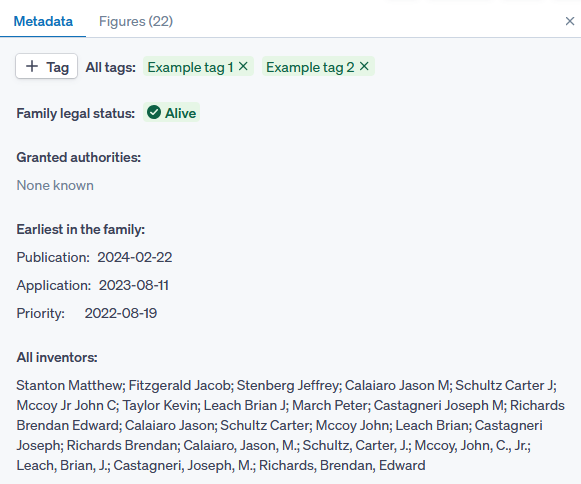
The Metadata tab on the right shows which tags have been applied. If representative view is selected, every tag used throughout the whole family will be shown. If a specific publication is selected, only the tags used for that publication will be shown.
The add tag button previously discussed in Tags for Results view is also in the Metadata tab, and the hot keys for adding tags works in this view as well.
Tags Page
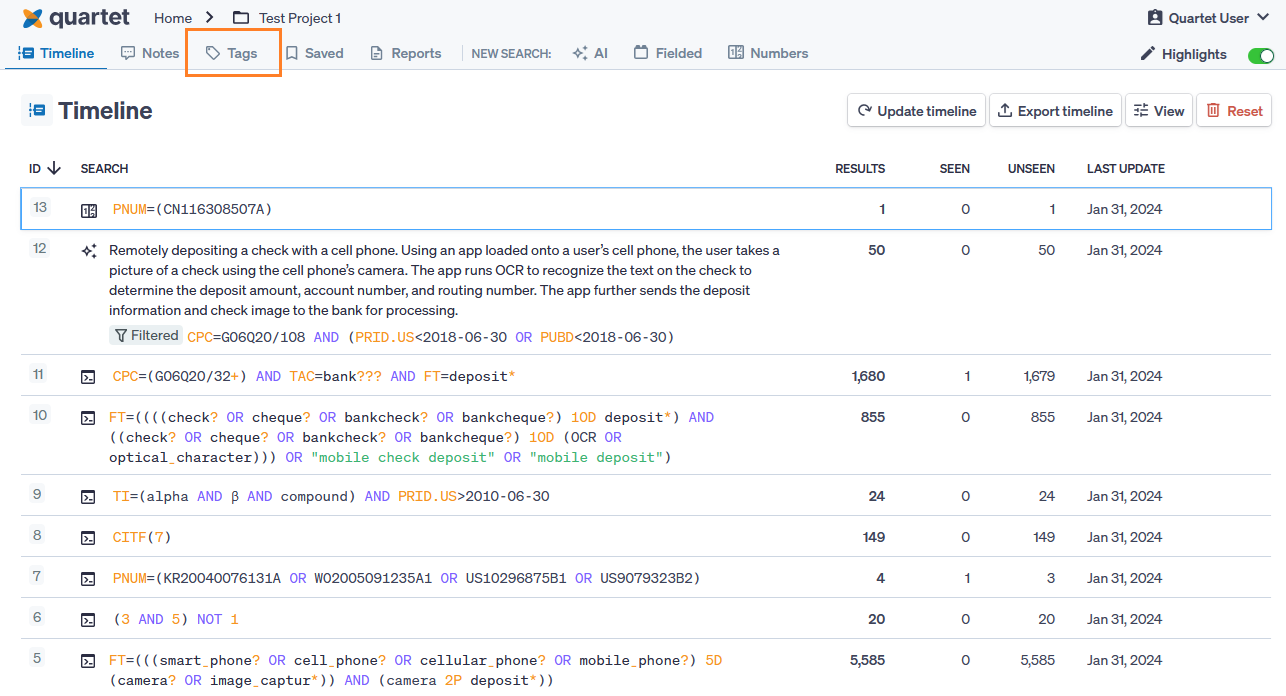
Any tags used for a specific project can be viewed in the "Tags" tab in the top left of the interface.
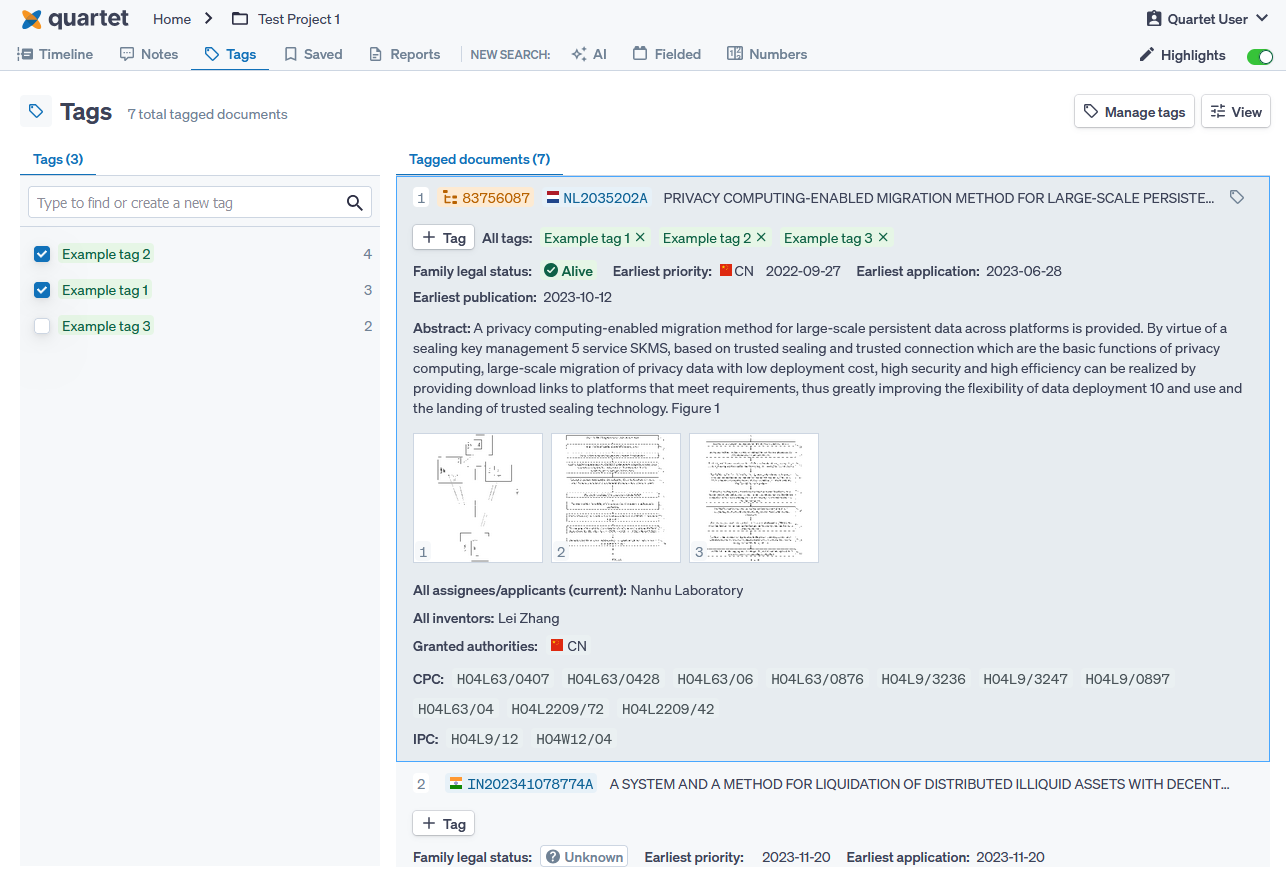
The Tags page shows all families that have been tagged and allows the user to filter the results shown by tag. In the example below, 9 total documents have been tagged, but the Tags page has been filtered to show the results tagged with "Example tag 1" and "Example tag 2," of which there are 7.
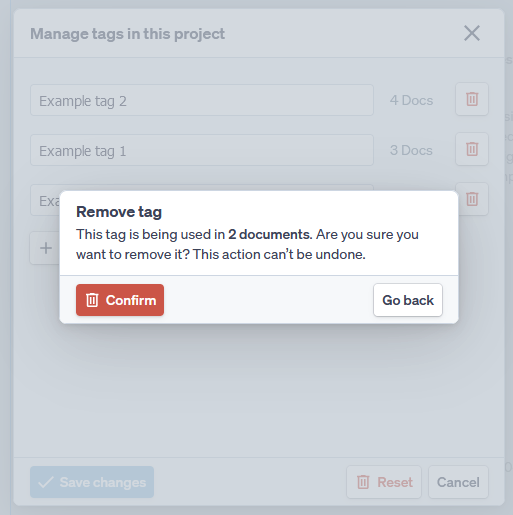
Tags for a project can be managed in the upper right corner of the Tags page with the "Manage tags" button. The Manage tags popup allows a user to add, delete, or rename tags.
The system will always confirm before deleting a tag. If the tag to be deleted has associated publications, the system will further inform the user of the number of publications.