-1.png?height=120&name=Quartet%20logo%20(light)-1.png)
The user has multiple methods for submitting search queries for a project – AI, Fielded, Numbers, and Command Line.
Users already familiar with Boolean searching and Quartet’s Operators can enter queries directly into the Command Line.
For users not as familiar, a "Fielded" search, "AI" search, and “Numbers” search are available for more guided searching.
Fielded Search
Fielded search is a guided fielded search form similar to advanced search pages in other search systems. For a more detailed, in depth how-to, see the fielded search page here. This guided experience can help users create complex queries without having deep knowledge of the commands and structure within Quartet.
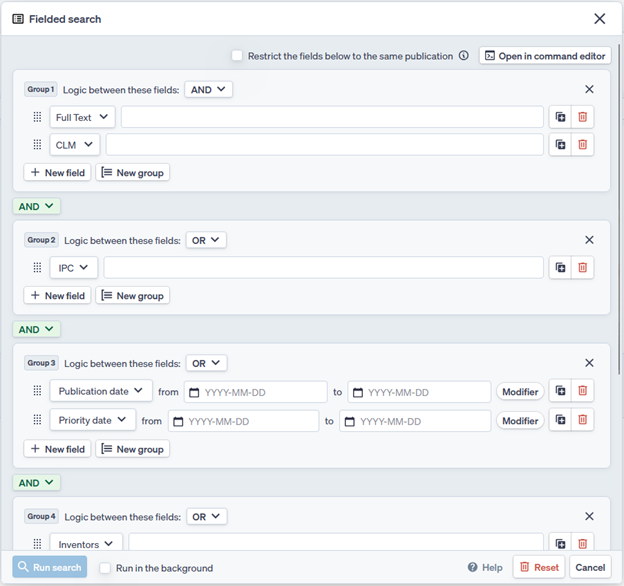
Fielded search provides a user with a series of groups and fields, which are connected with Boolean operators. The relationships between the fields within a group can be changed between AND and OR. The relationship between groups can be defined with either an AND or a NOT operator.
Additional groups and fields can be added, and fields can be moved between groups with the grab handle dots  located on the left side of the field.
Fields left blank will not be searched or included, so there is no need to delete the extra fields each time.
AI Search
AI Search uses cutting-edge natural language processing models to match text input to documents that may be relevant to the entered text. This is not the same as the old keyword searching, or previous lackluster semantic search modules. Natural language processing through machine learning looks at sentences, phrases, and paragraphs and attributes meaning and context to the passages of text. It will look for other documents with the same meaning and context even if it uses different terminology.
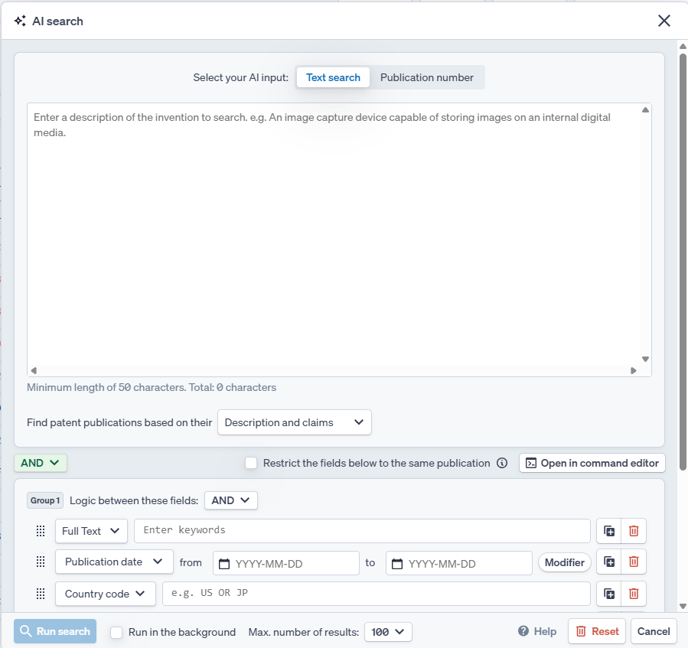
Within the AI Search form, the user can freely enter text to describe what it is for which they are searching.
The minimum length for AI text input is 50 characters.
The more descriptive the input text, the better the AI results tend to be. Example techniques to add context to the input description include re-describing descriptions in a user’s own words, defining terms to aid the system in understanding the technological area, describing how things are used, and providing a best mode of invention. Providing context around the search is very important to ensure the module is looking in the correct technological area.
The user can set the maximum number of results that will be returned as an AI search from 25 to 500 records. The results will appear as a set of search query results within the Timeline, in order of relevance according to the model. The relevancy as determined by the system is shown in Results view, in the top left.
AI Search Filters
Additionally, the AI Search module allows for a Filtering command to be used concurrently with the AI Search. The Filtering command in essence sets a corpus of documents within which the AI Search module will search. For example, if a user is more or less confident that results for a desired search will fall within a certain classification area, the user can limit the results from the AI Search module to be within a specific main group and all subsequent subgroups (Refer to Search Query Structure on how to run such a search query).
Filters for AI search can be entered using a fielded input search form similar to the Fielded search module, or the user can toggle “Command input” to enter filters in command line format. The “Command input” changes the input form to a “Filtering command” box that operates the same as the Command line in that it accepts Boolean, Proximity, and Wildcard Operators and accepts line references as well as citations to line references. Any filters used with an AI search will be shown on the Timeline underneath the AI input text for that search query.
Numbers Search
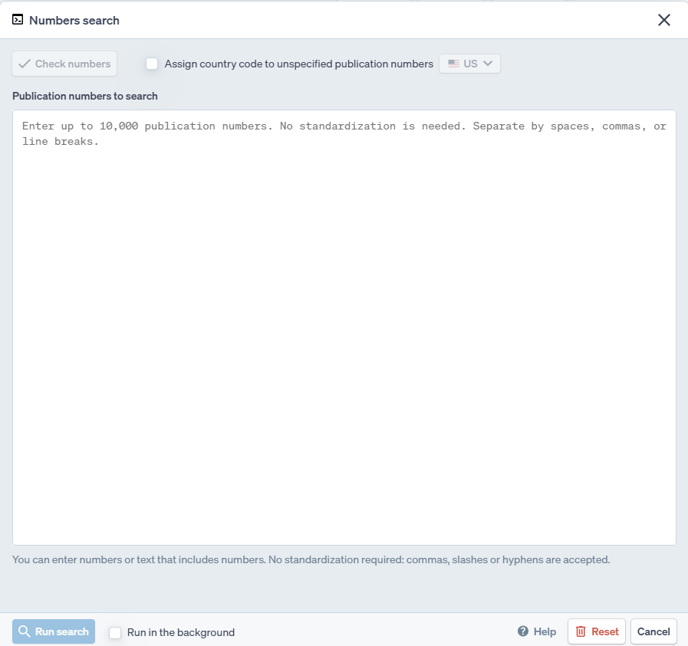
Numbers Search allows a user to enter publication numbers to pull a set of results. Currently the system supports a large number of formats within the 6 largest jurisdictions: US, WO, EP, CN, JP, and KR; additional jurisdictions are supported but may not have as much flexibility in recognizing obscure or nonstandard number formats.
Entire blocks of plain text can be copied and pasted into the search box and the system will automatically detect and extract publication numbers. Detected numbers will be highlighted in green. Numbers without a country code will be highlights in yellow. If numbers missing country codes are provided, there is the optional checkbox at the top where a country code can be assigned to all numbers which don't currently have a country code.
Command Line
The command line is accessible in multiple places within Quartet, it can be found at the top as a search modal, it can be found as a line at the top of the timeline, or the modal can be brought up with the hotkey "C"
The Command line is a way to quickly input commands but requires that the user be familiar with the command and syntax structure of Quartet.

With the Command line, the user can enter search commands into the Command line to run Boolean queries with their desired search fields and keywords as well as combining or excluding other search queries from the results (See operators). The user can press either the enter key or the “Run Command” button and the command will then run and be shown on the Timeline.
A quick way to learn new syntax or commands is to create the search query within the fielded search module then use the "Open in command editor" to see what that query would look like within the command line.