-1.png?height=120&name=Quartet%20logo%20(light)-1.png)
Quartet includes a robust highlighting system to draw the user’s attention to keywords in the document displayed onscreen using different colors.
Clicking “Highlights” in either Results view or Detail view will bring up the “Highlights” popup box.
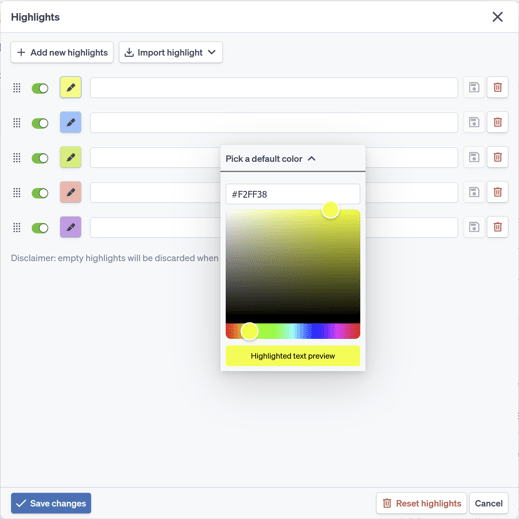
The user can input keywords or phrases they wish to highlight and select the desired highlighting color.
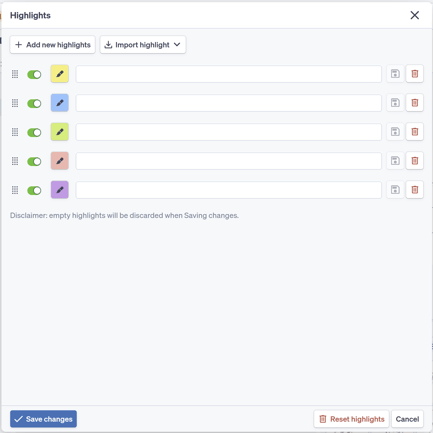
The highlighting system stores 12 default, high-contrast colors from which a user can choose. The default colors and the order of the colors can be customized in Account Settings.
If more colors are needed, the user can add additional highlights and choose specific colors for each line.
The order of the highlight colors in the “Highlights” window can be reordered by grabbing and dragging the dot matrix for each highlights line.
Highlights at the top will have priority; highlights will take the color of a “higher up” color if the same term repeats in two different lines.
The colors for each search line are fully customizable should the user want or need different or specific colors. To customize the color, click on the color square in the “Highlight” window, click Pick a custom color, and select a new color using either the color palette and slider or entering a specific Hex color code.