-1.png?height=120&name=Quartet%20logo%20(light)-1.png)
Results view shows a brief summary of each patent family from a set of results or saved references.
This page will cover the following:
Overview
An overview of query results or saved families can be reviewed from the Results view page.
- To view search query results, select the desired query on the Timeline page.
- To view saved families, click on the Saved tab.
Information displayed in Results view
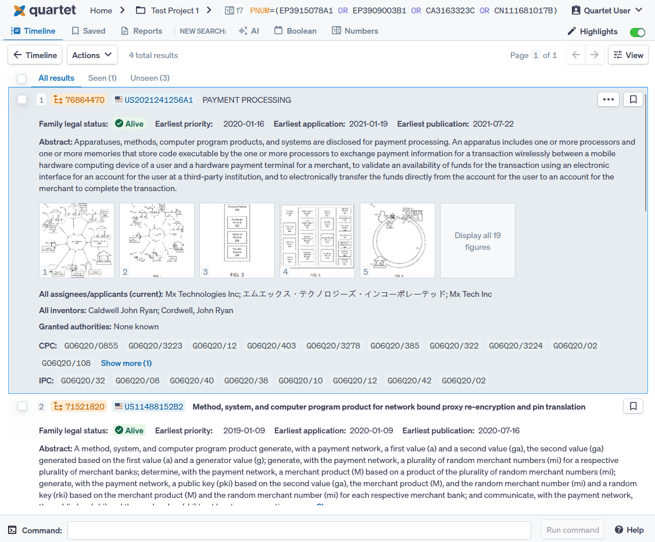
Family Information
The top of each family shows the DOCDB family number, representative family member publication number, and the title of the representative member. Quartet will choose a representative family member to display based upon a background set of rules. The default set of rules as defined in the system will generally display an English language publication whenever possible.
The default sorting order is by earliest application date in descending order, except for AI Search results which are sorted by relevance score. The AI relevance score can be seen to the right of each reference line.
Some jurisdictions are not assigned a family number; these will be shown as “No DOCDB family” where the family number normally would be. Additionally, when viewing a set of results run in the past, a previously unassigned family that has since been assigned to a family will show an “ASSIGNED” tag. Hovering over the tag will display a message to rerun the search to see the updated family.

In Results view view, the assignee, inventors and classification codes shown are collated from all family members. Individual family members may contain only a subset of the entities and classifications shown in this view.
Hover-over Popups
When hovering over the patent number (highlighted in blue), a popup with a quick overview of the reference is displayed. The overview includes title, abstract, inventor(s), assignee, and publication date. Hovering over a highlighted patent number in any view will show this popup. The hover over popup can be useful to see basic information of a representative family member, if data is displayed in the more condensed views.
Similarly, hovering over classification codes will bring up a Classification Popup window. This hover over popup is also available in any view in which classification codes are displayed. In the popup window, click on each classification to open the classification schedule from the corresponding authority in a new tab.
Result Sets with over 10,000 results
When a query surpassing 10,000 results is viewed in Results view, a warning is displayed to inform that 10,000 of the total results has been loaded into the Results view. Note that even though you can only view a subset of 10,000 references, the entire query will be accounted for when combining line references.
However, since Insights gathers information directly from Results view, it will only analyze the 10,000 reference subset that is loaded.

The warning above shows that only a subset of 10,000 results out of 556,619 are loaded into Results view for review.
View options
Quartet has a default view for the Results view page, however it is possible customize the Results view page using the View options.
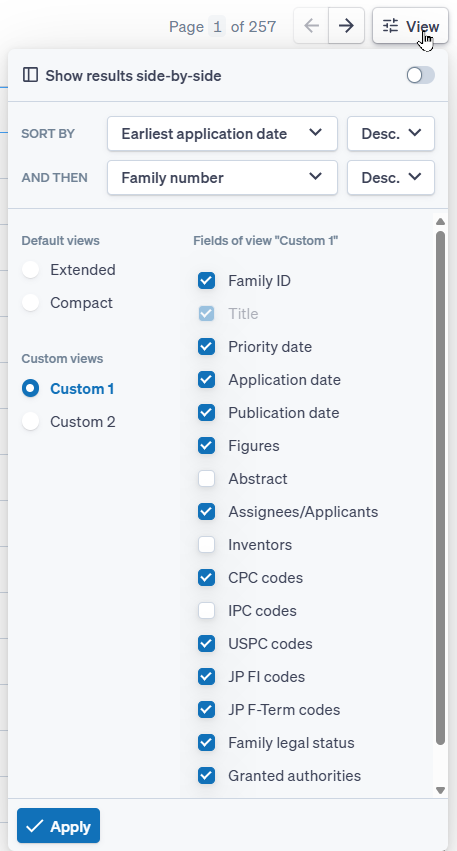
The “View” button near the top of Results view provides options to customize information displayed in Results view. While the results ID, publication number and title are always shown, it is possible to toggle off all other available data points.
There are two default options and two custom options. Extended list shows every available option listed above. Compact list shows the Result ID, Family ID, Publication number, and Title. Custom views 1 and 2 allow you to define which of the fields to display.
Side-by-side View
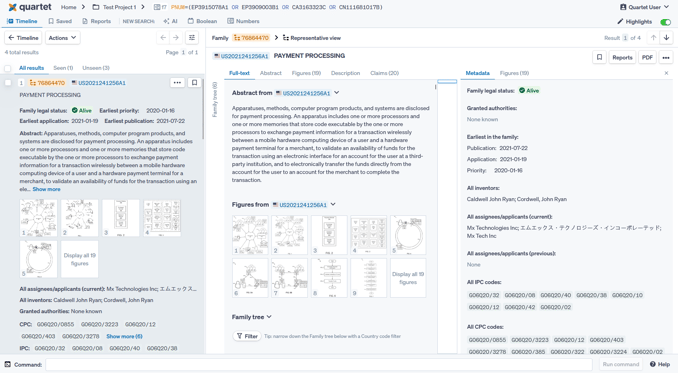
A toggle option inside the “View” button pop-up menu is “Show results side-by-side.” When toggled on, this option creates a split view with the Results view on the left and the detailed family view, Representative view, on the right. The split between the two panels can be adjusted by clicking and dragging the shared border.
The side-by-side view allows you to review a selected document in detail while still being able to access information from Results view such as an AI relevancy score, seen/unseen information, and other bibliographic data.