-1.png?height=120&name=Quartet%20logo%20(light)-1.png)
There are a number of actions available from the Results View including performing Insights and bulk marking results as seen / unseen
Actions button
Near the top left of the Results view page is the “Actions” button from where it is possible to perform additional actions on the entire set of results or on a subset of individually selected results.
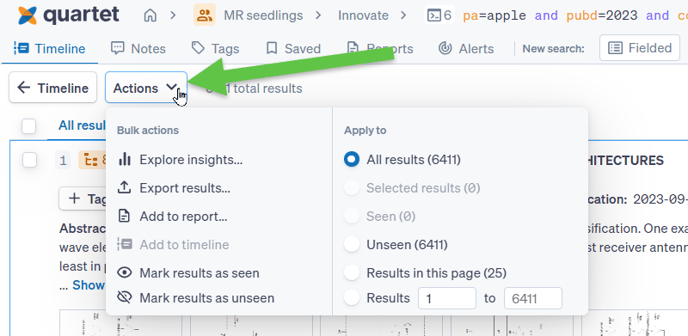
If no references are selected, the system will perform the actions on the entire set of results by default. It is possible to individually select references of interest, using check boxes to the left of the Result ID. Additionally, a subset of results can be selected in the “Actions” menu such as seen/unseen references or by entering a numerical range of results on which the actions will be executed.
When any results are selected, the “Actions” button will show how many references have been selected.
Bulk Actions
Mark results as seen/unseen
This action can be performed on all records in the results set or on a subset of records if selected via the tick box on the left. For more information about seen/unseen, please visit this article.
Add to timeline
It is possible to either add all results or a subset of results from a search query to the Timeline. Quartet will run the selected results as a Family Number search string in the Timeline as the most recent search query.
Export results
Export bibliographic data from the entire set of results or a subset of individually selected results from a given search query.
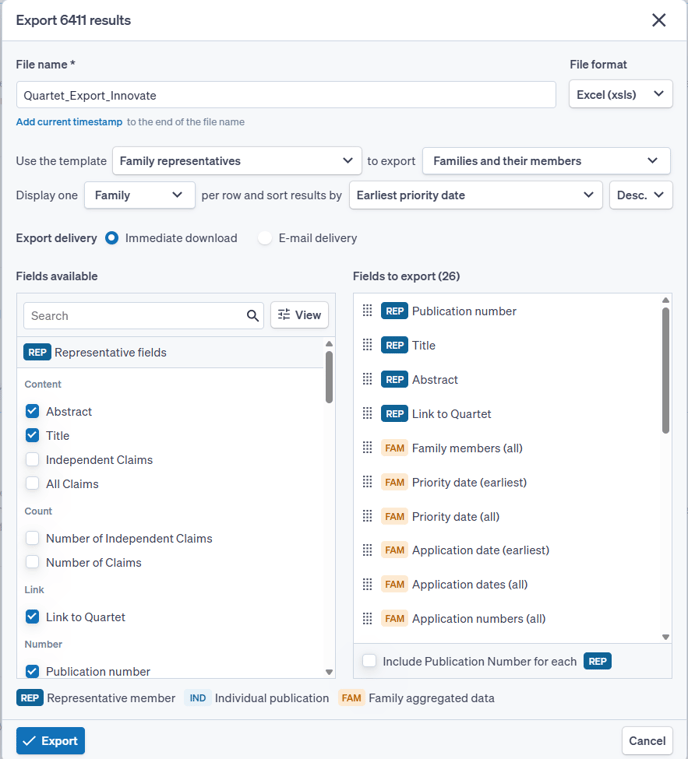
Quartet will generally export the bibliographic data of representative family members. However, if a numbers search was used to run the query, the specifically entered publications will be exported instead. When exporting representative family member bibliographic information, the collated data for inventors, assignees, and classification codes will be used.
It is possible to organize the exports based on earliest priority, earliest publication date and Family ID in either ascending or descending order. In the case of a Numbers Search, the order in which the documents were entered in the Numbers Search form can also be preserved such that the exports are organized in the same order as how they were entered into Numbers Search. Additionally, when exporting results from an AI search, they can be sorted by the AI score.
Export of results from AI Search does not export the AI relevance score.
Add to report
The “Add to report” option will add all or the selected subset of results to a Report. Quartet will add representative family members unless the search query is a Numbers search, in which case it is possible to add either the publication searched or the representative member of that family. In the window to add results to report, select either an existing report or create a new report.
Right side actions
There are additional actions available at the right edge of each family in Results view.
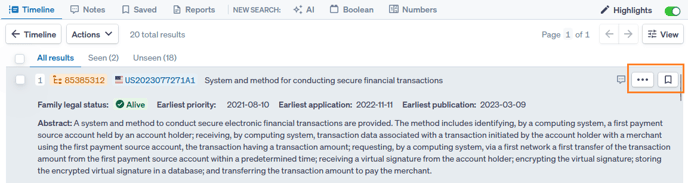
When hovering over each family, there is a flag to save or unsave a family into a Saved list. A saved family's flag will be filled in green  , while an unsaved family's flag will be empty
 .
.
From the three-dot actions button it is possible to mark references as seen/unseen and to add notes to the family.