-1.png?height=120&name=Quartet%20logo%20(light)-1.png)
The Timeline is the detailed search history where all a user's search queries are saved.
This page will cover the following:
For each project, Quartet automatically saves a detailed search history comprising the syntax for each query ran, the number of results for each query, how many and which documents a user has already reviewed, and the date each query was executed.
Information displayed on Timeline
Completed Search Queries
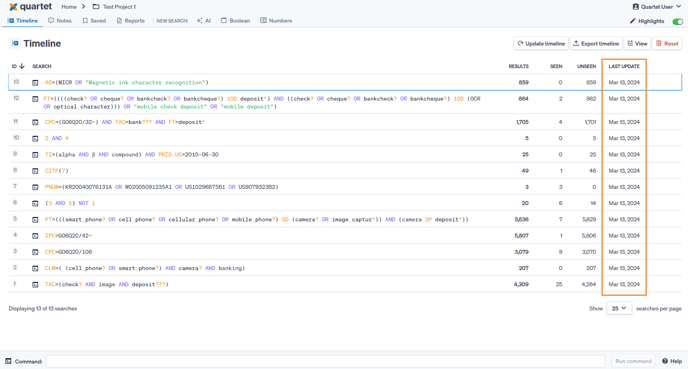
The Timeline displays six columns of information for each search query comprising ID, Search, Results, Seen, Unseen, and Date Completed. The columns shown on the Timeline can be customized using the “View” button.
By default the Timeline sorts the queries by the ID number, however, the user can re-sort the Timeline by the Results or the Date completed columns by clicking on the header of the desired column.
The number of projects displayed on the Timeline page can be changed by selecting 10, 25, 50, or 100 projects per page from the drop-down menu at the bottom of the Timeline page. If there are multiple pages of queries, the user may cycle through the pages by clicking the “Previous” and “Next” buttons, or by entering the number of the desired page in the box between the “Previous” and “Next” buttons.
ID column
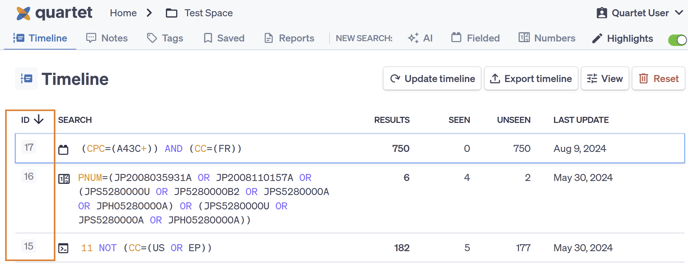
The ID column displays an ID number that is assigned to all queries on the Timeline. Assigned ID numbers represent the order in which each query was run (i.e. query 1 was ran first, query 2 was ran second). The ID column is the first column on the left of the Timeline page. The Timeline sorts all queries by the query ID in descending order, with the largest ID number corresponding to the most recent query at the top.
Search column
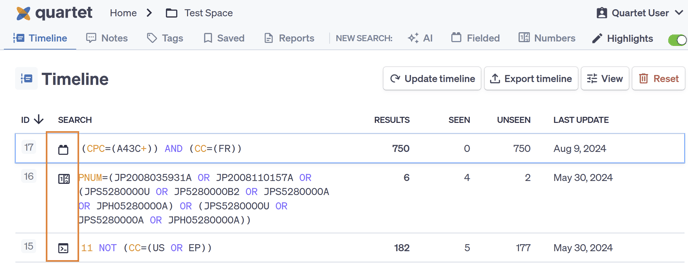
The Search column displays the syntax used in each query along with a “Query” icon, which tells the user the type of the query that was run. There are four different “Query” icons, each representing whether a query was run using the Fielded search form, the AI search form, the Numbers search form, or the Command line.
 shows that the search query was executed using Fielded search form.
 shows that the search query was executed using AI search form.
 shows that the search query was executed using Numbers search form.
 shows that the search query was executed using Command line.
Results column
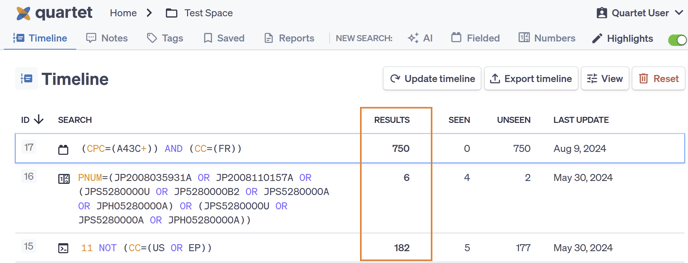
The Results column shows the number of results returned for each query. The number of results indicates the number of patent families returned for a given query.
Seen & Unseen columns
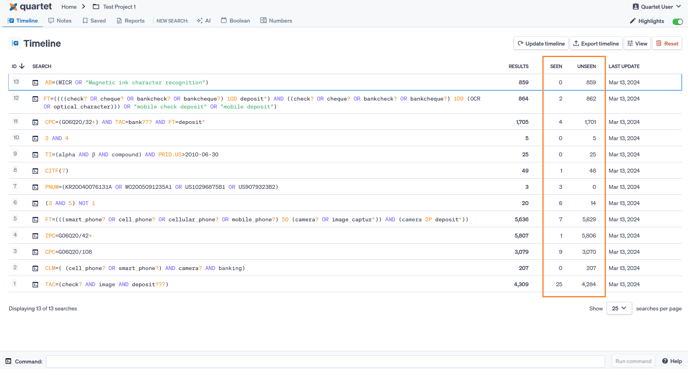
The Seen column and the Unseen column shows the number of results that have been “seen” by the user and the number of results that remain “unseen” by the user, respectively. The sum of the Seen and Unseen numbers is equal to the total number of results returned for any given query. The Seen/Unseen information simply lets a user track how many references they have reviewed for each query in the Timeline.
Last Update column
The "Last Update" column shows the date each search query was most recently updated or run. Each query is static, meaning that the results returned are dependent on the database as of the date the query is executed regardless of updates to the system thereafter. Users may refresh all queries at once by using the “Update timeline” button or refresh selected queries by using the “Duplicate search…” selection from the “Three-dot” button (both discussed later in this section).
Pending Searches
After a new query is entered, Quartet automatically takes users to the Timeline page where the new query appears either as a new line in the Timeline or as a line in a separate temporary table.
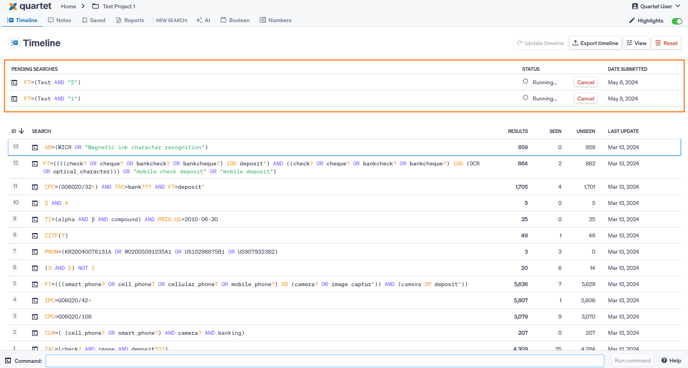
The temporary table displays three columns of information:
- Pending Searches, which displays the same information as the Search Column, discussed previously
- Status, which indicates if the query is currently in the process of running or waiting to be run; and
- Date Submitted, which displays the date a query was submitted.
Each query line in the temporary table also contains a “Cancel” button that allows the user to stop the corresponding search. Users do not need to wait on a search to complete running before entering another search, as Quartet can run multiple search commands concurrently. Concurrently running queries will frequently be shown as pending searches.
A search query cannot reference a currently pending query. The referenced query must be completed first.
Timeline Actions
Command Line
At the bottom of the Timeline is the Command line. The Command line is accessible in the same location in most other views in Quartet as well, and because of this, the user can quickly run additional queries without having to navigate to previous screens. The Command line is a way to quickly input commands but requires that the user be familiar with the command and syntax structure of Quartet.
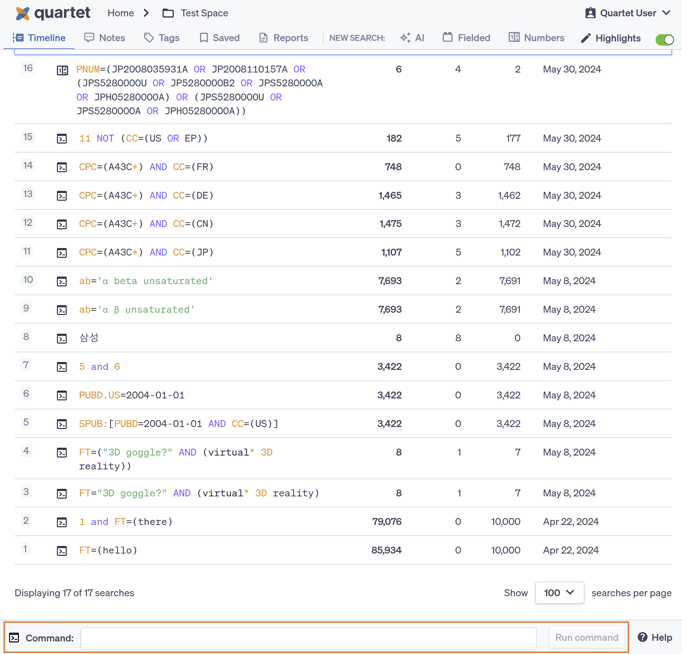
With the Command line, the user can enter search commands into the Command line to run Boolean queries with their desired search fields and keywords as well as combining or excluding other search queries from the results. The user can press either the enter key or the “Run Command” button and the command will then run and be shown on the Timeline.
Line References
Search query results can be combined together via the Timeline. The lines of each search query can be combined with Boolean operators - AND, OR, NOT - and query ID line numbers.
- 1 AND 2 returns the overlap between the results of line 1 with the results of line 2.
- 3 OR 4 returns all the results from line 3 and all the results from line 4.
- 5 AND FT=tire returns the all the results from line 5 which also mention “tire” in the full text.
“Update timeline” button
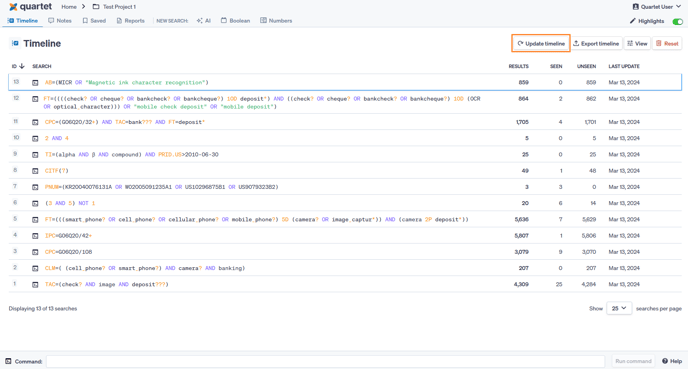
As previously mentioned, search queries are static to the date that each query was executed. The “Update timeline” button will update every query in the Timeline such that the results of each query will reflect patent data as of the current day. Updating the Timeline may change the number of results reported as newly published families are added to the system. Further family members of reported families may be added or removed. While the Timeline is updating, all other searching will be unavailable until the update is completed.
“Export timeline” button
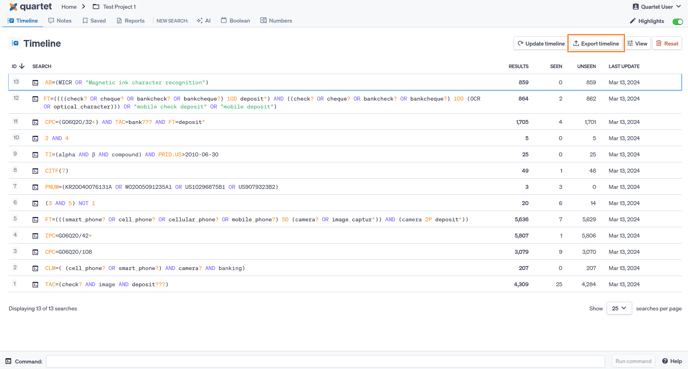
The “Export timeline” button located on the Timeline page allows the user to export the search queries from the Timeline and number of results from each query into a downloadable Excel file. There are additional options for exporting the number of references seen and the date each query was run. The results are exported in descending order regardless of how the Timeline is sorted.
“View” button
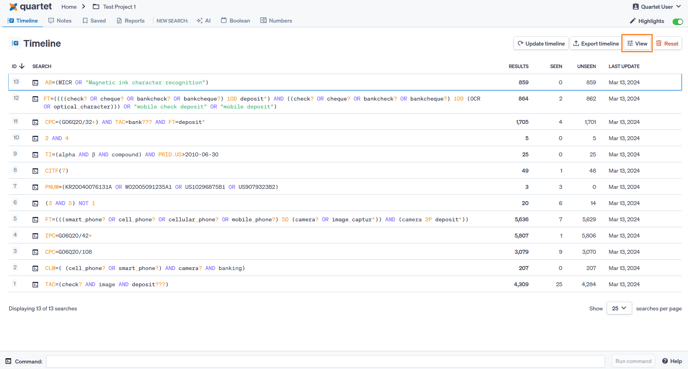
The “View” button located on the Timeline page provides the user custom view options on the Timeline. The ID column and the Search column are required to be shown, but all other columns can be toggled off and on.
“Reset” button
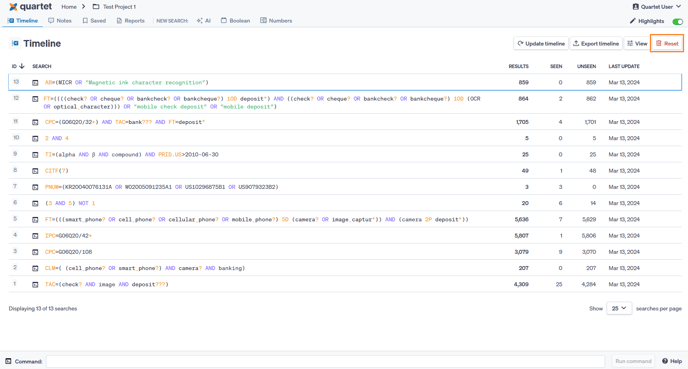
The “Reset” button will delete all search queries in the project and provide the user with a clean Timeline from which they can work. The system will verify reset as the deleted search queries cannot be recovered once deleted.
“Query type” & “Copy” icons
The “Query type” icon located is within the Timeline in the “Search” column next to a query. When the user hovers their mouse over the “Query type” icon, the icon changes to a clickable “Copy” icon . Clicking the “Copy” icon copies the search query as shown on the Timeline to the user’s clipboard.

(query type icon)

(hovering over query type icon changes to copy icon)
“Three-dot” button
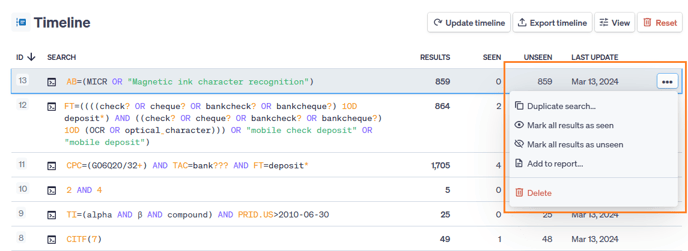
The “Three-dot” button is located within the Timeline on the far right-hand side but is hidden until the user hovers anywhere over a specific query line. When selected, the "Three-dot” button presents a drop-down menu of four actions that only affect the specific query.
“Duplicate search”
The “Duplicate search” option located in the “Three-dot” button drop-down menu will duplicate the search query as it was originally written and executed. When duplicating a query that was executed using the Command line, the query is automatically pasted into the Command line and the user only needs to select “Run command” to execute the query. When duplicating a query that was executed using one of the search forms found on the Search page, the user is automatically returned to the specific search form used and the form is pre-populated with the exact query that was executed. Note, duplicating a query does not automatically duplicate other queries that depend on it.
“Mark all results as seen” and “Mark all results as unseen”
The “Mark all results as seen” and the “Mark all results as unseen” options located in the “Three-dot” button drop-down menu are used to change all results from a query to a status of “Seen” or “Unseen”, respectively. Marking as seen/unseen will dynamically update the Seen and Unseen numbers in the other search queries as well.
“Add to report”
The “Add to report” option located in the “Three-dot” button drop-down menu adds all families in that line of results to a Report. The system will add representative family members unless if the search query is a Numbers search, in which case the user has the option to add either the publication searched or the representative member of that family. In the window to add results to report, the user can further select an existing report or create a new report.
“Delete”
The “Delete” option located in the “Three-dot” button drop-down menu provides the option to delete an individual query. When a query is deleted, the action cannot be undone and the system will display a warning asking the user to confirm the action. When a query is deleted, subsequent queries which depend on the deleted query via a line reference will also be deleted.
Alternatively, the user can choose to delete all search queries in the Timeline using the “Reset” button.
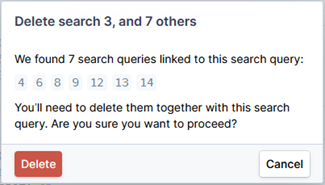
After deleting a query, the system will automatically update and renumber any affected subsequent queries and any relevant query references.
Editing Search Queries
Search queries can be retroactively edited and run again. When a search query is updated, every depending query is also run to ensure the dependence of queries is preserved, and to ensure results from dependent queries match previous limitations, in that regard, think of it as a partial update only on the queries effected.
To edit a search query, choose the option from the three dot popup on the right of the timeline.
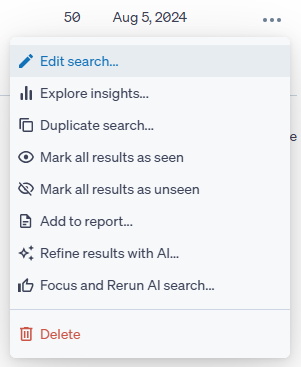
Choosing to edit search will show a dialog box for you to confirm your choice and to list any dependent queries.
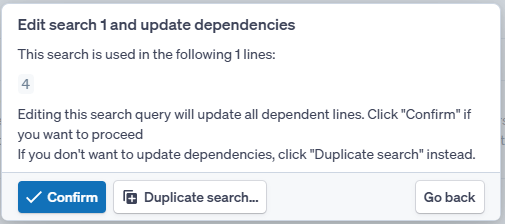
Additionally, the system will suggest the option of duplicating the search - this will this will allow you to use the existing search as a template to run a new search rather than editing the existing search. For search duplication see here.
If you confirm to continue with editing, then the search form associated with the query will appear. You can use the search form to make any needed changes to the original query and then re-run the edited query. As the query is re-run the timeline will be grayed out, similar to when a search update is run, and progress is shown at the top of the timeline.

Once the search update is complete, the query and dependents will have updated to reflect the edits made.
Note that editing a search will not change the status of seen/unseen documents. Therefore documents previously seen will still be considered seen, even if they no longer are the result of a search query. Similarly, if the edited query had been completely seen, editing and re-running the timeline may result in new unseen results.